Data Review, Download and Approval
Please note that to approve data, you need Approver permissions. Please see Permissions on the NQDC for more details
Note: Categories with mising data items cannot be approved
Click the Data Review button on the top menu to access the Data Review and Approvals page.
-
Review
A summary is provided of all data updated into the application for the current time period. Cells with data missing are highlighted in orangey red and filled with 'Further information needed'. If you upload a CSV or Excel file downloaded from the review page, this placeholder will be removed.
-
Download
An Excel file of all data can be downloaded using the Generate Excel file for Download. Once the Download Excel data file button appears, click this to begin the download. If you click another button on the application hence the Download Excel data file button is no longer visible, click Generate Excel file for Download again.
Likewise an example OLS report can be downloaded, using the Download OLS report PDF button.
Each category of data can be downloaded in CSV format. With the mouse resting over the table you require, click on the download image in the menu that appears in the top right hand corner of the table:
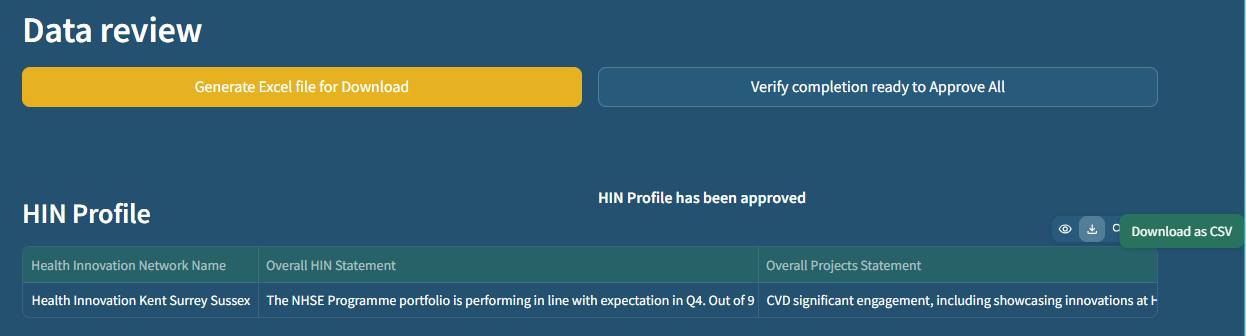
| Show/hide column | Download | Search | Fullscreen | 
-
Approval
A single data categories can be approved or all data can be approved, to freeze the submitted data.
- To access the approve button, first click Verify completion ready to Approve for the category you wish to approve. This checks the data for missing values and is available regardless of your permissions.
- If all the fields are populated and you have Approver permissions, the Confirm Approval button will then be available. If one of these criteria is not met, the button will be disabled.
- Once you approve the category, you will no longer be able to amend any data in this category or add further data. If you approve all, this will apply to all categories. You cannot undo an approval.
Note that categories with missing data items cannot be approved.
By the end of the submission window, each HIN should have approved all categories.