Data Entry
Please note that to make changes to the data, you need Contributor permissions. Please see Permissions on the NQDC for more details
-
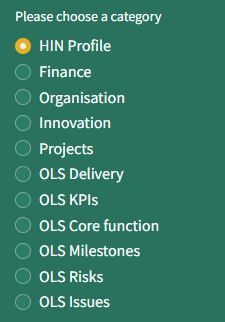
When on the Data Entry tab, click the button for the data category you want to enter, in the sidebar (green panel).
-
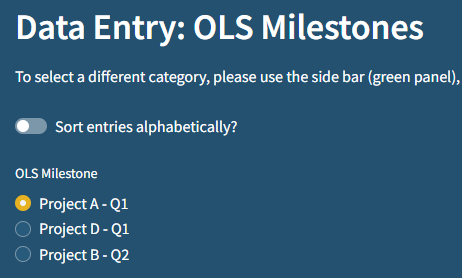
For multi-entry categories, select the entry from the list.
-
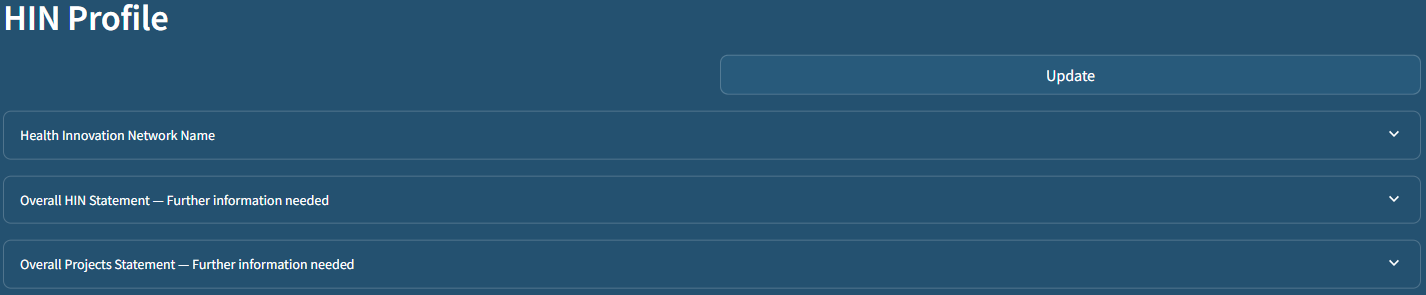
Each data field will appear in its own section below
-
When opened, each section has a space to enter the value.
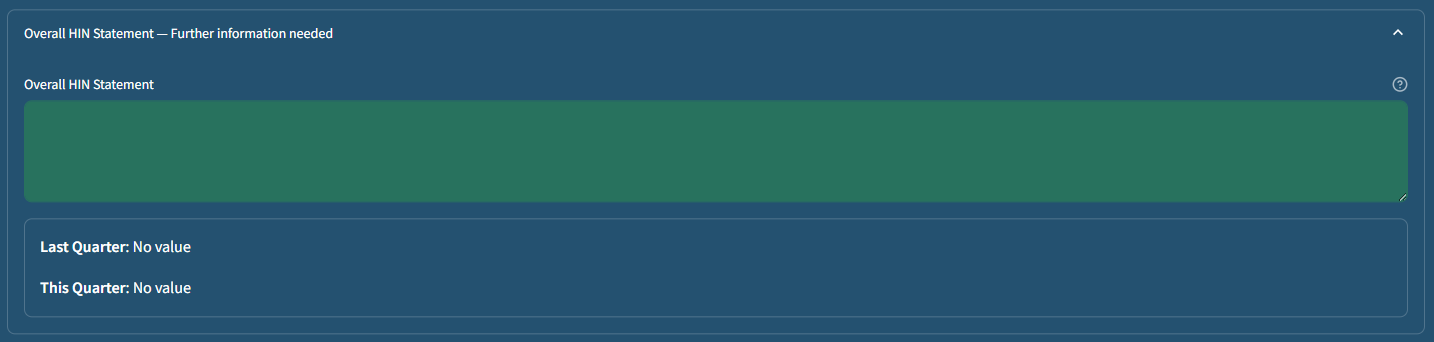
Fields with last quarter values will also have a Copy from Last Quarter button. For the pilot and Q1, there is no last period content.
Once you have completed a field and updated it, the Clear answer button will appear. -
Once content has been entered into the data entry field(s), click the top Update button to record the value(s). You will see the new content move to 'This Quarter'. Multiple fields for the same entry can be updated at the same time.
-
To revise the 'This Quarter' value either:
- Enter fresh content into the data entry field and click Update or
- To clear 'This Quarter' value altogether, click on the Clear Answer button followed by Update and the 'Further information needed' flag will re-appear.

Note that for all data entry, only the last entry will be recorded. Previous content will be overwritten by new updates.
-
For a multi-entry category, to add an item click Add new .... For each item, follow the guidance above the Update button to ensure the key fields (identifiers) are completed first. For any multi-entry category, once a new item has been updated, the identifiers cannot be changed. An explanatory message will appear alongside.
For OLS KPIs, the page layout is slightly different as the 9 entries are predefined. Therefore, there is one update button for the whole category rather than each entry.
New organisations can be added by searching for a Companies' House number (company registration number, CRN). This is available for UK companies. Click Add by searching Companies House number and enter a valid number in the field provided. Press Enter to search and the name and postcode of a match will be returned.
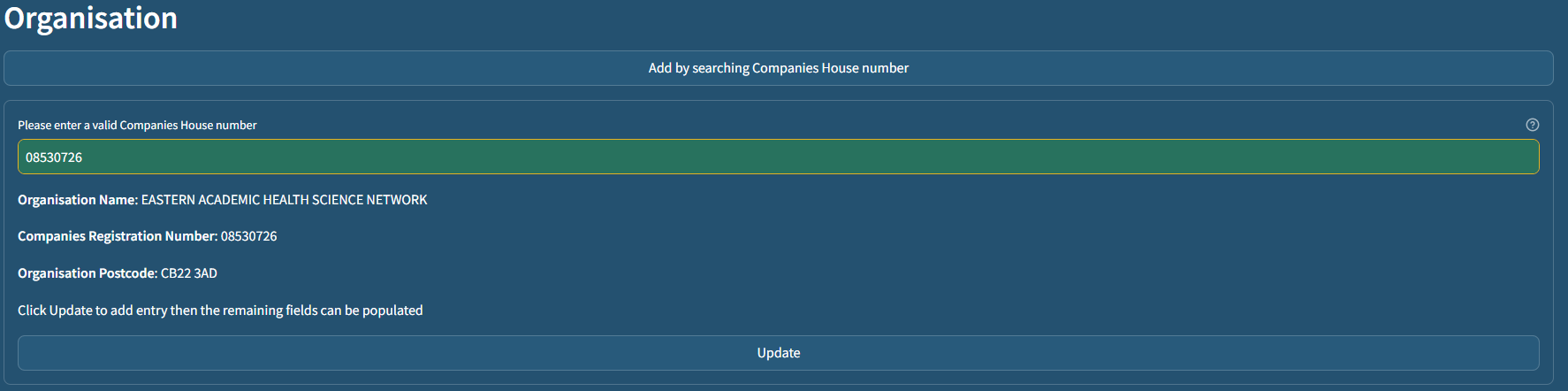
To accept the returned record, click the Update button and continue to complete any remaining fields.