User Guidance
Click here to start using the Network Quarterly Data Collection (NQDC) application. Links to sections of the guidance are below:
- Signing In and Out
- Adding Data to the Application
- Data Entry. To add data via data entry
- Data Upload. To add data via file upload
- Data Upload: Critical Issues, Missing Flags and Warning Notices. Explanation and advice regarding all data quality flags
- Data Amendment
- Data Review, Download and Approval
Data Process
To record data in the application, there are four core stages:
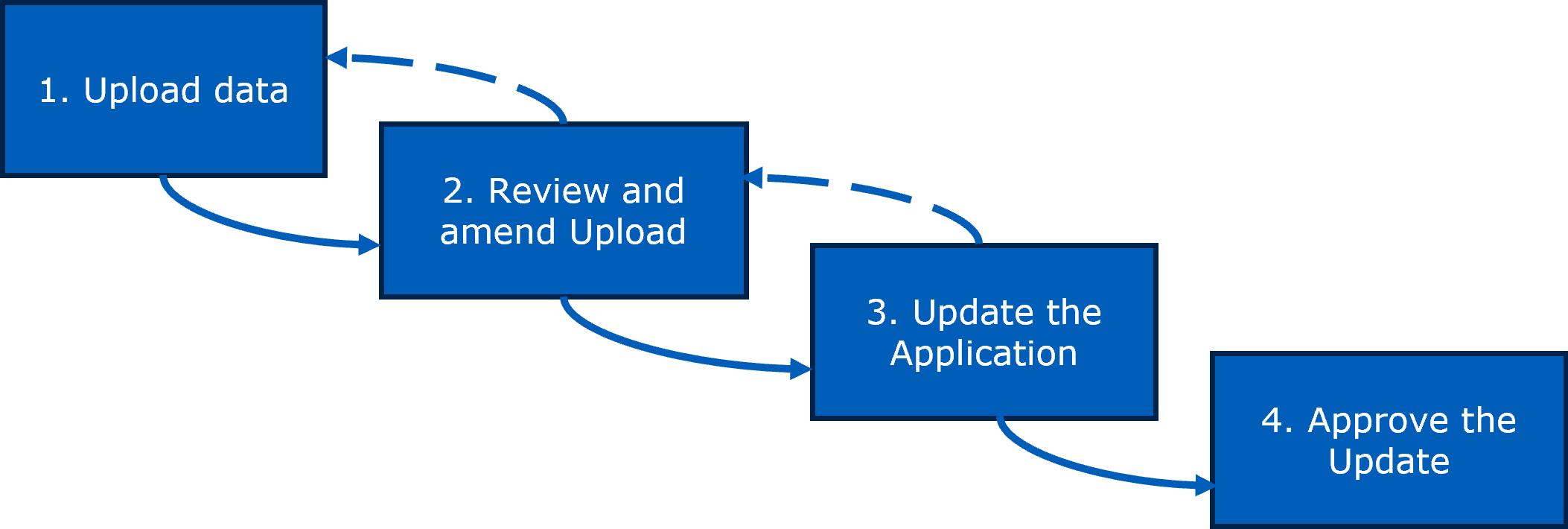
For stages 1-3, please see Adding Data to the Application.
To approve your data, please see Data Review, Download and Approval.
Terminology
Key terms used in the Guidance:
- Category: A section of data as grouped in the collection (e.g. HIN Profile, Innovation, OLS Risks, etc).
- Single-entry category: Categories restricted to one entry of data per time period: HIN Profile, Finance and OLS Delivery.
- Multi-entry category: A category that allows for more than one entry of data per time period (e.g. OLS Risks, Innovations, etc).
- Identifier: For multi-entry categories, a field or fields in each category that uniquely identifies each individual row of data. The identifier columns are highlighted in the Excel template, coloured with dark blue background and white text in the header. For the Data Entry on the application, the Identifiers and their dependents are denoted by bold text.
Points of note
- Do not refresh the screen or use the browser's "back" button before the application has been updated (stage 3) as content will be lost.
- Should the application default to the Home page during processing, continue by returning to your previous page.
- Only use the "Sign out" button, if you have saved your data using the "Update" button (stage 3)
Simultaneous Access
Simultaneous access to the application for two users from the same HIN is not possible as this could lead to data being overwritten due to the refresh of data in the application.

Therefore, if you log in while another member of your HIN is logged into the application then you will see a message like below.
Please log back in later when the other users has finished.
If a user is inactive for 15 minutes, then they will be automatically logged out, allowing another user to access the application.
If the other user has logged out, please wait 15 minute before another user tries to log in.